How to Use the YouTube Channel Dashboard: Step-by-Step Tutorial
One place for your channel: total views and subscribers, every synced video with its SEO score, and period charts that only show what was actually recorded.
1Sign in and pick your channel
Sign in with Google and choose your channel. Access is read-only: TubeDoe can read, never post or edit.
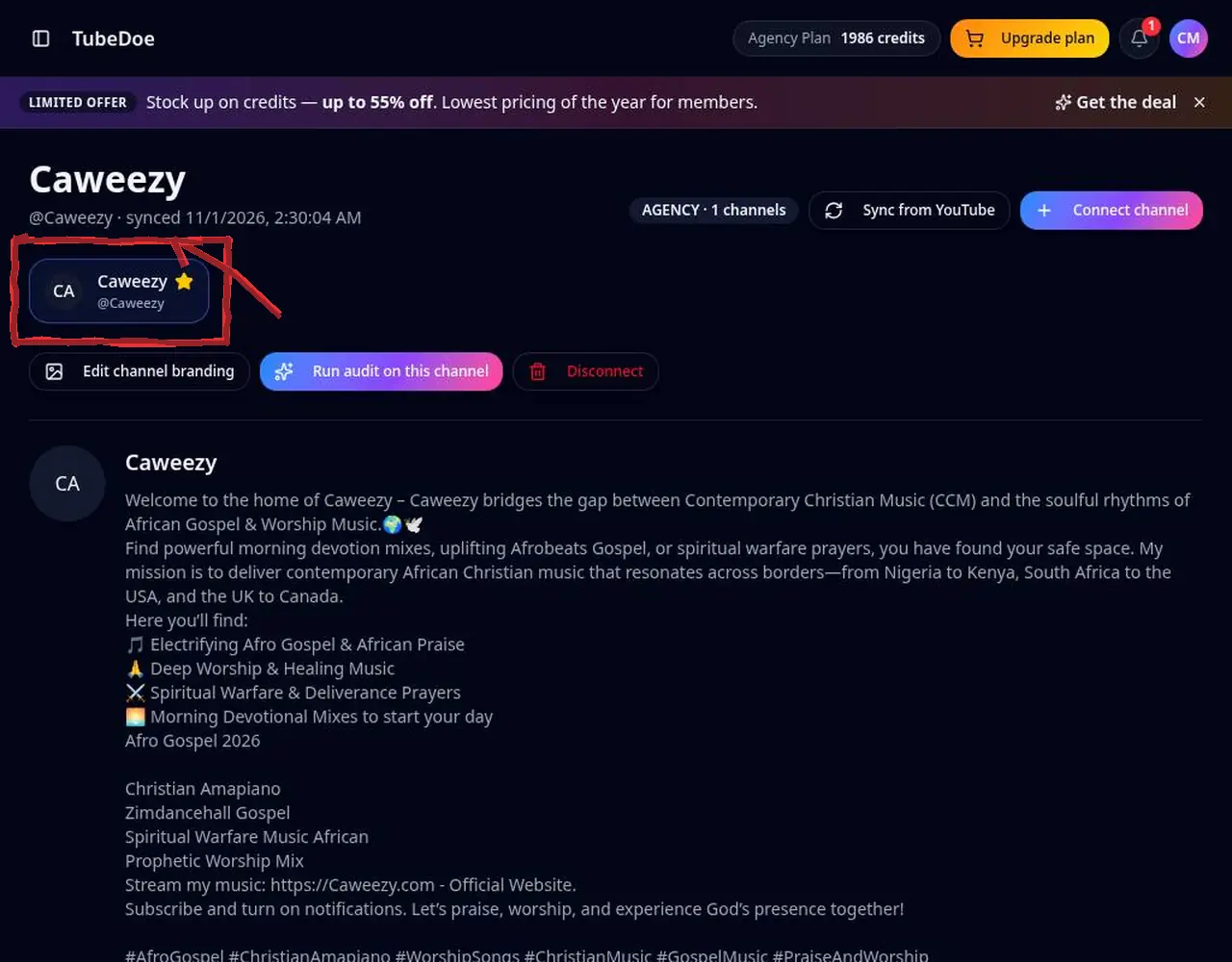 1: Sign in and pick your channel
Step 1 — Sign in and pick your channel 2Review lifetime stats
Open the YouTube Channel Dashboard to see views, subscribers, uploads and the average SEO score.
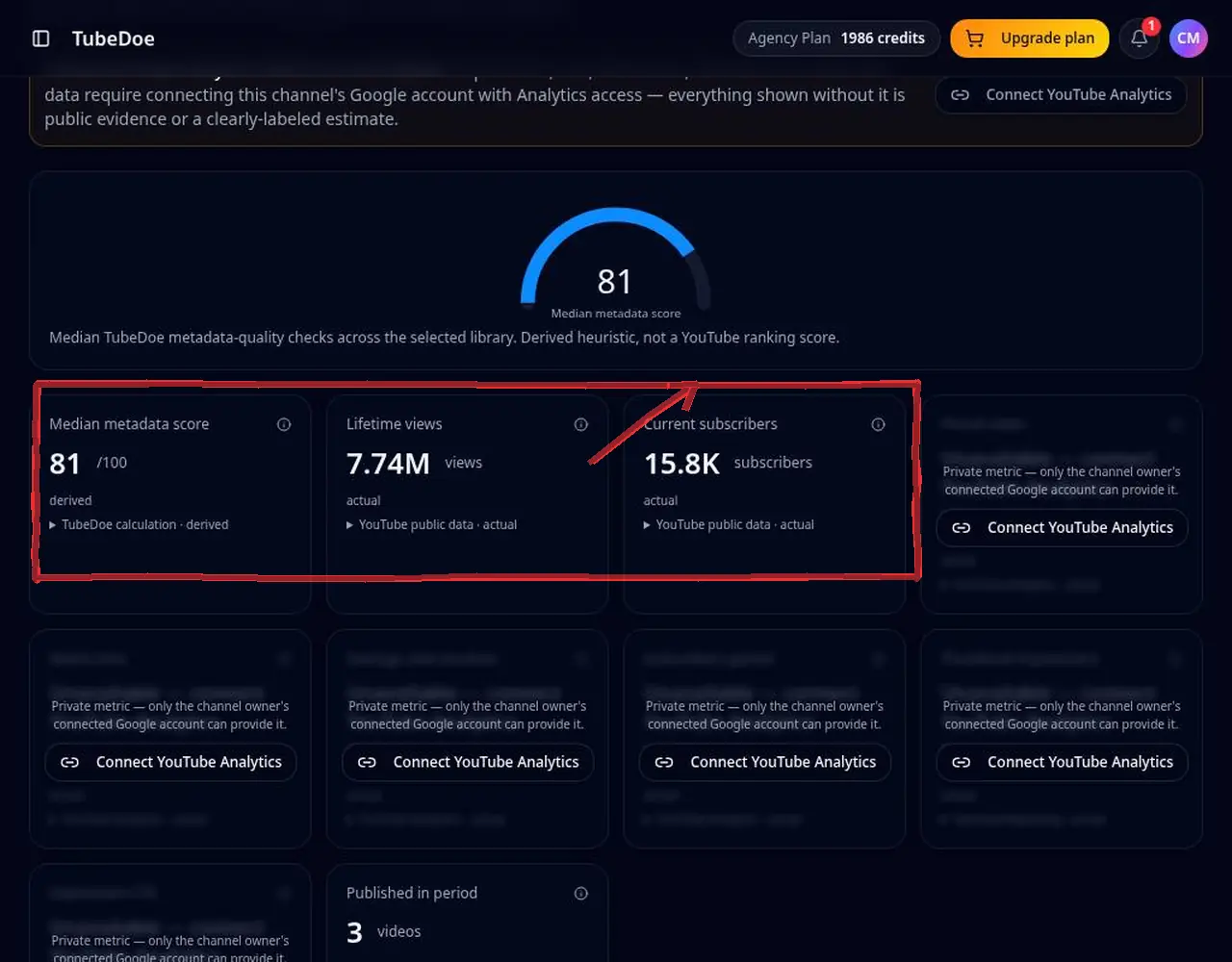 2: Review lifetime stats
Step 2 — Review lifetime stats 3Sort videos by SEO score
Your synced uploads appear with SEO scores. Sort weakest first to find quick wins.
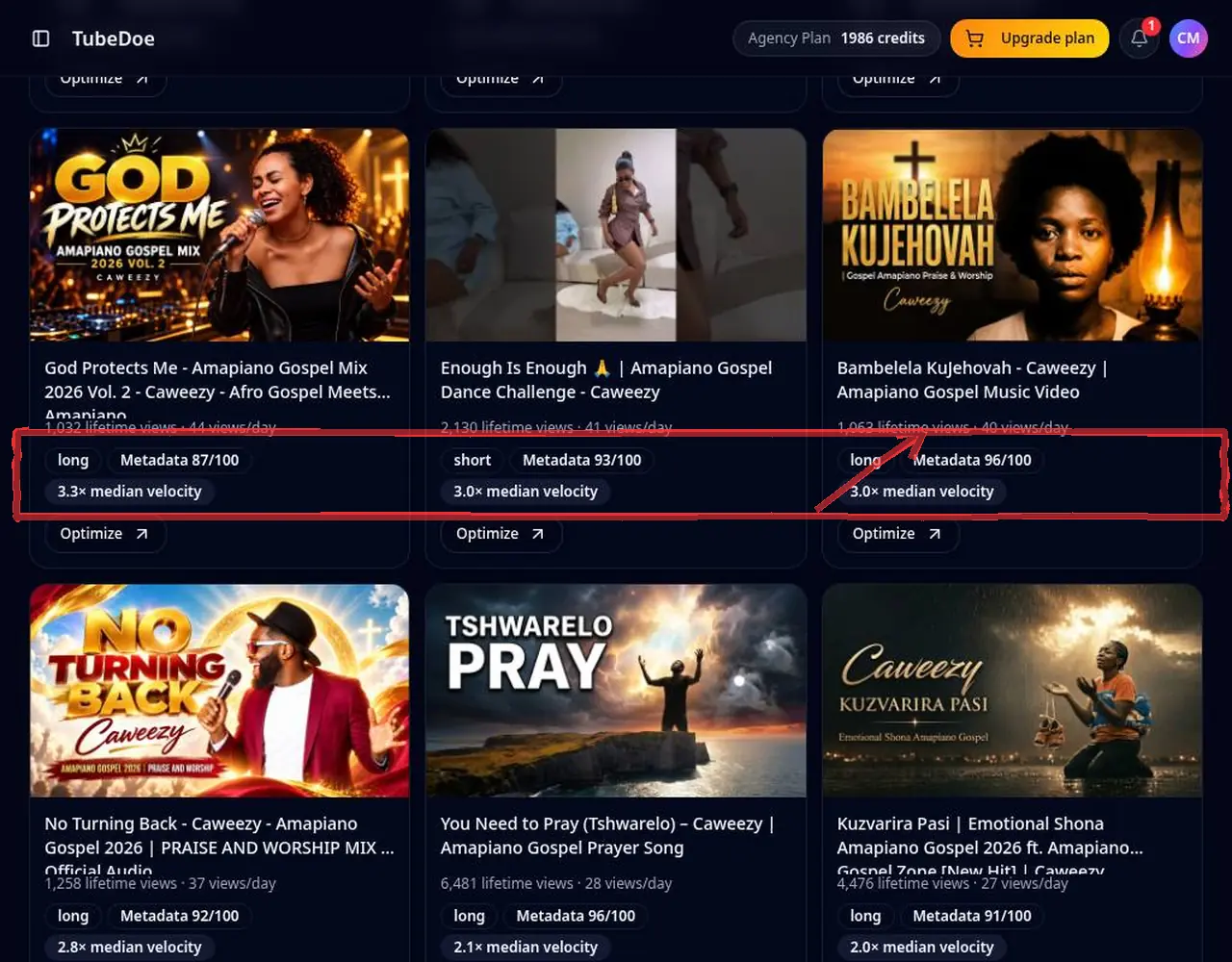 3: Sort videos by SEO score
Step 3 — Sort videos by SEO score 4Open a video to fix it
Click a video's action to open it in the YouTube Video Optimizer.
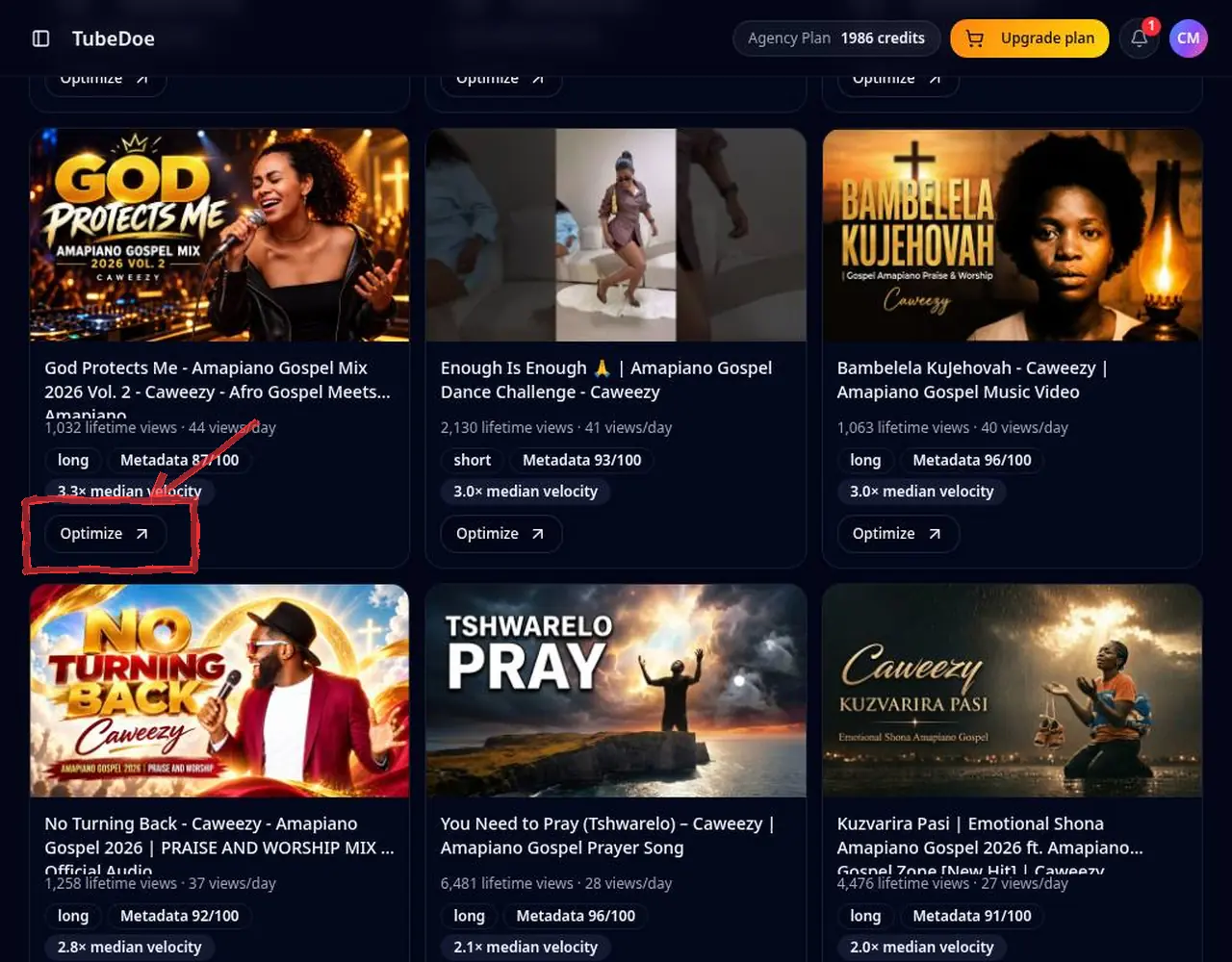 4: Open a video to fix it
Step 4 — Open a video to fix it 5Connect YouTube Analytics (optional)
Locked cards unlock watch time and CTR when you connect Analytics read-only. Charts only show days that were actually recorded.
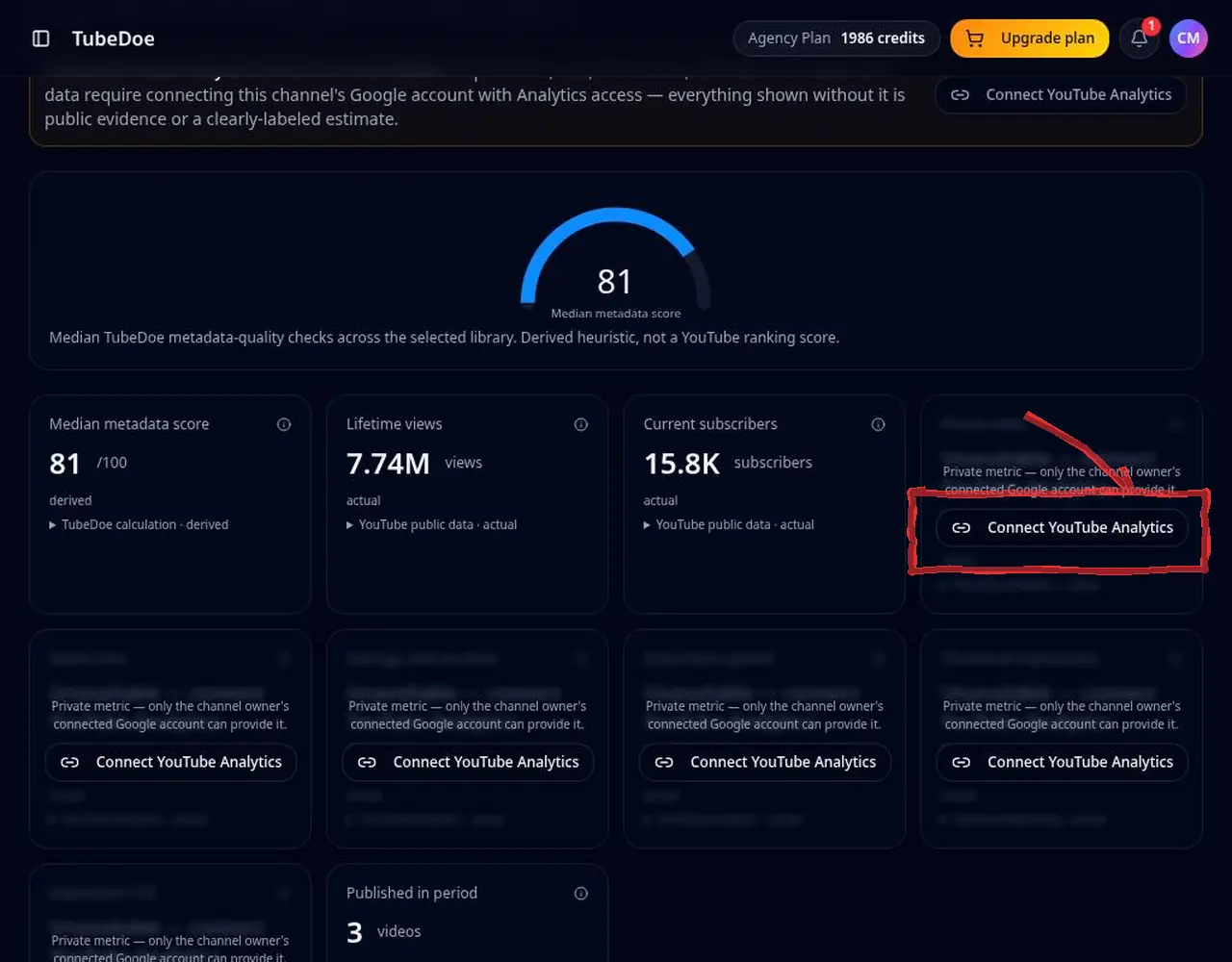 5: Connect YouTube Analytics (optional)
Step 5 — Connect YouTube Analytics (optional)
Pro tips
- Check the dashboard weekly rather than daily — trends matter more than single days.
Mistakes to avoid
- Assuming a flat chart means no growth — new channels need a few recorded days first.
YouTube Channel Dashboard FAQ
Can TubeDoe change my videos?
No. YouTube access is read-only; edits are copied into YouTube Studio by you.
Why are some charts locked?
Private metrics such as watch time need YouTube Analytics access, which you can connect at any time.
Is the dashboard free?
Yes, the dashboard and video sync are free on every plan.
Why does my chart only have a few points?
Charts use real dated observations only. History builds up from the day your channel is connected.
Can I connect more than one channel?
Yes, and the Agency plan supports unlimited channels.