How to Use the YouTube Video Optimizer: Step-by-Step Tutorial
Your back catalogue is free traffic. The Video Optimizer scores every upload, shows what is missing and drafts improved titles, descriptions and tags you paste into YouTube Studio.
1Paste a video link or browse uploads
Open the YouTube Video Optimizer. Paste a link to one of your videos or pick from your synced uploads.
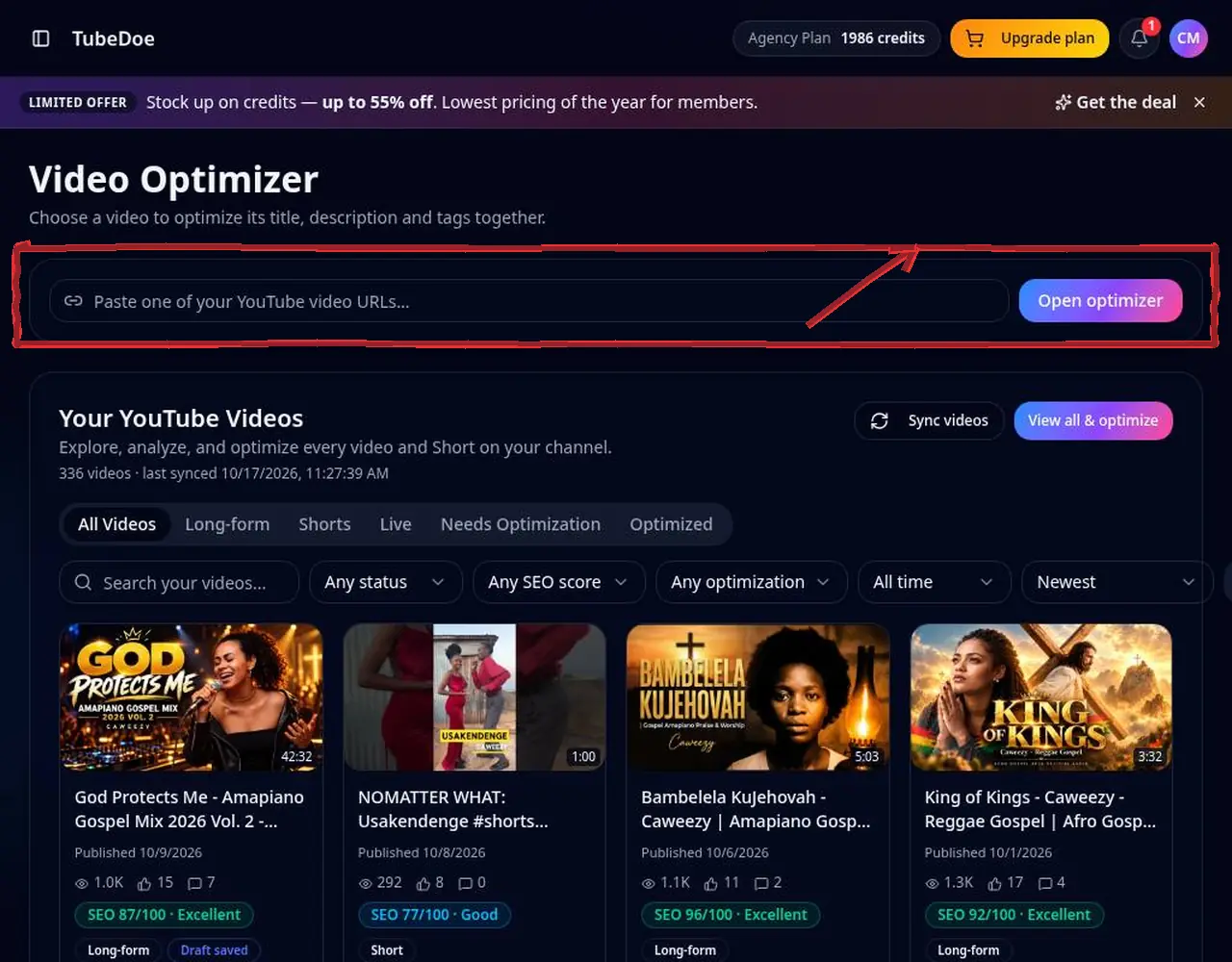 1: Paste a video link or browse uploads
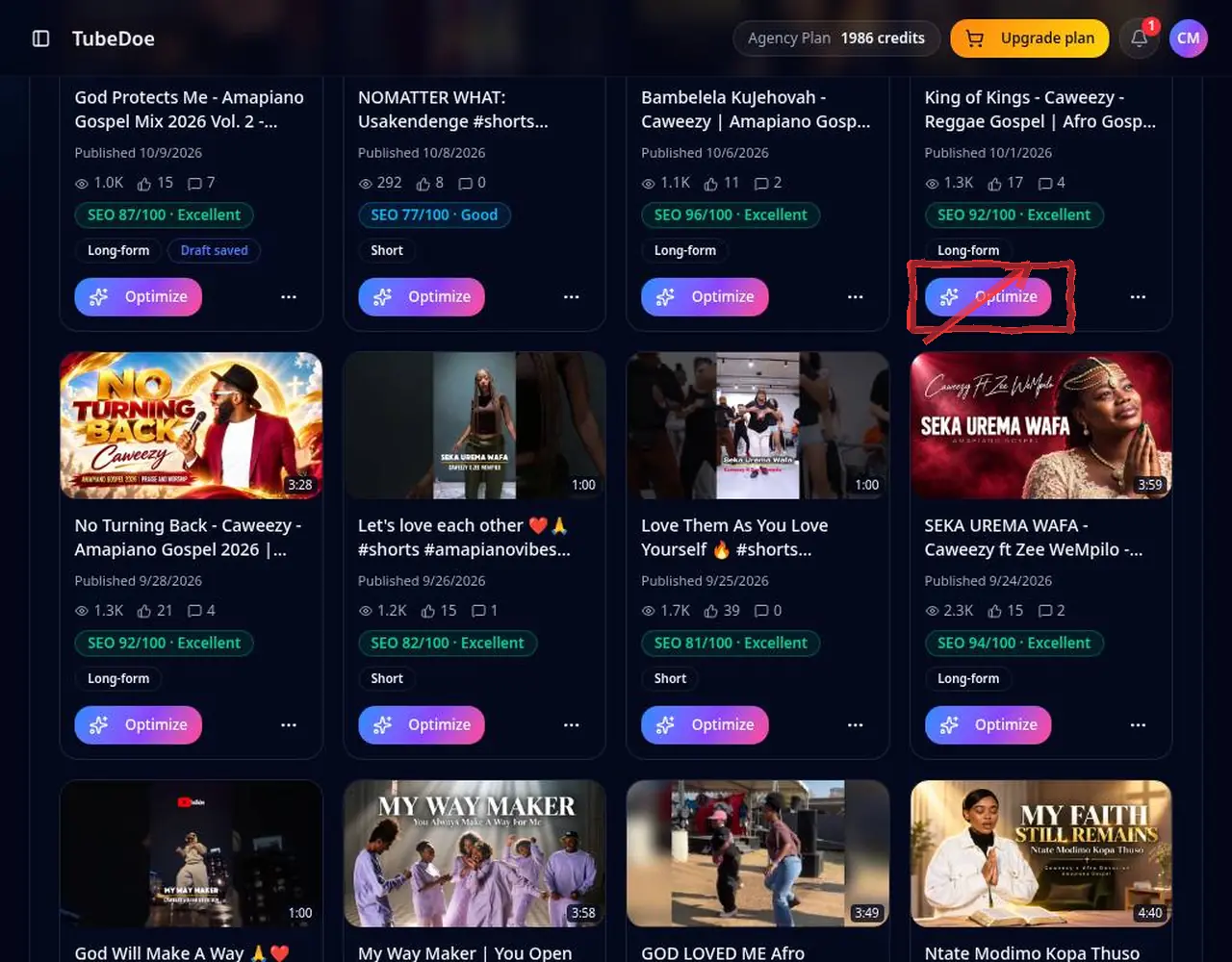
Step 1 — Paste a video link or browse uploads 2Pick a video with a low score
Each upload shows an SEO score. Click Optimize on a low scorer to see which checks failed (title length, keyword, description depth, tags, hashtags, chapters).
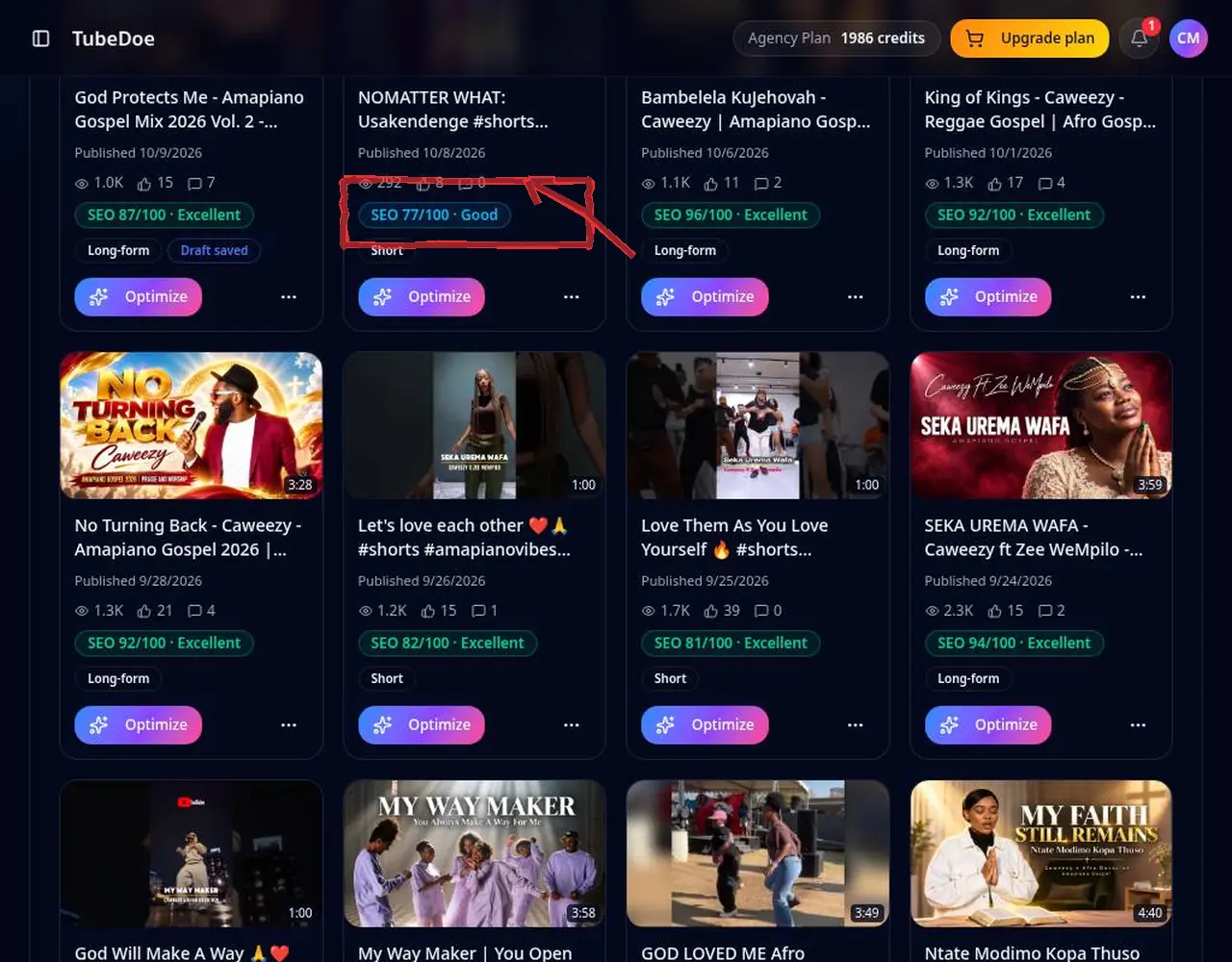 2: Pick a video with a low score
Step 2 — Pick a video with a low score 3Filter to work faster
Filter long-form, Shorts, live or “needs optimization” to batch similar videos.
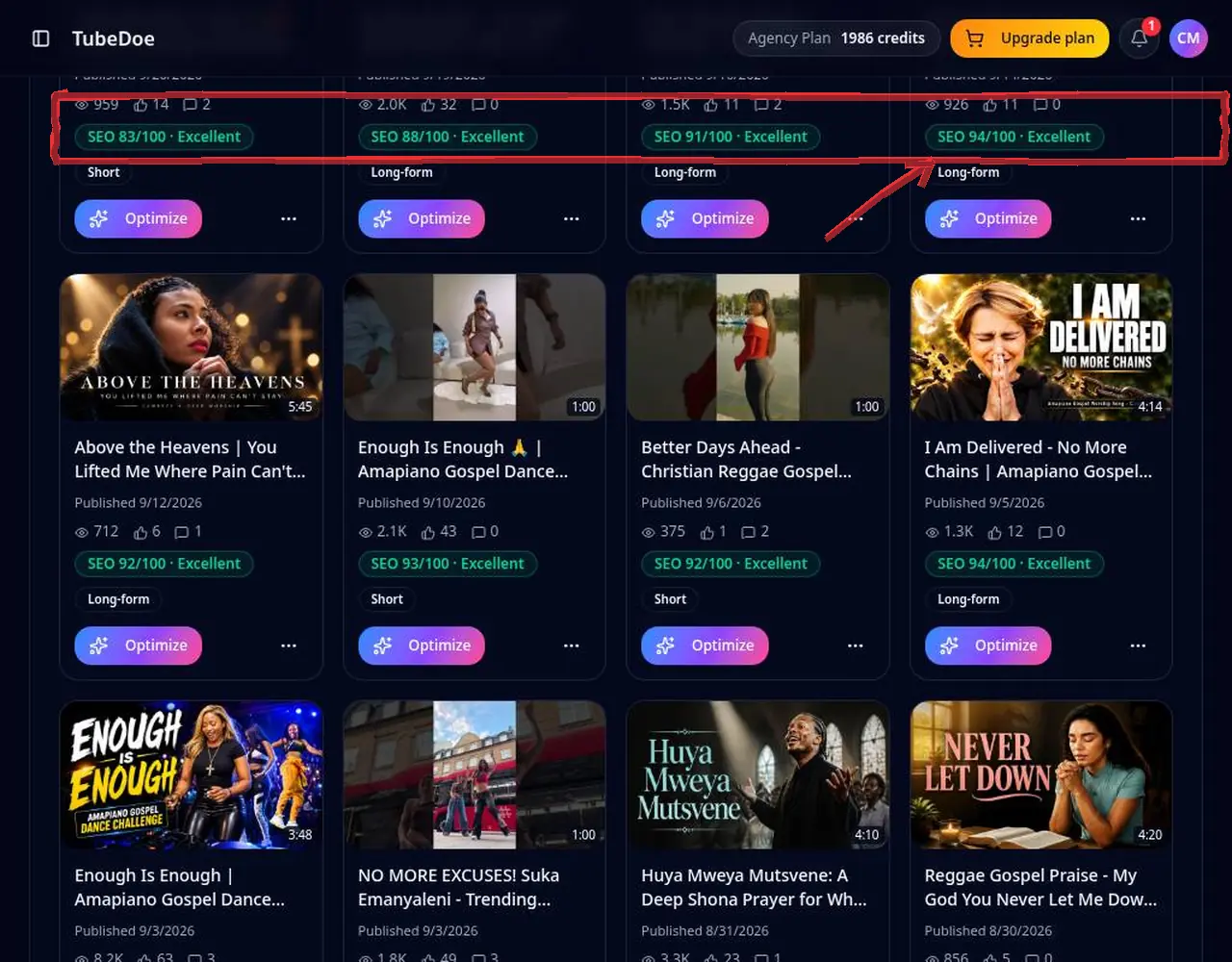 3: Filter to work faster
Step 3 — Filter to work faster 4Generate improved metadata
Get a new title, description and tags. Drafts are kept in history so you can compare versions.
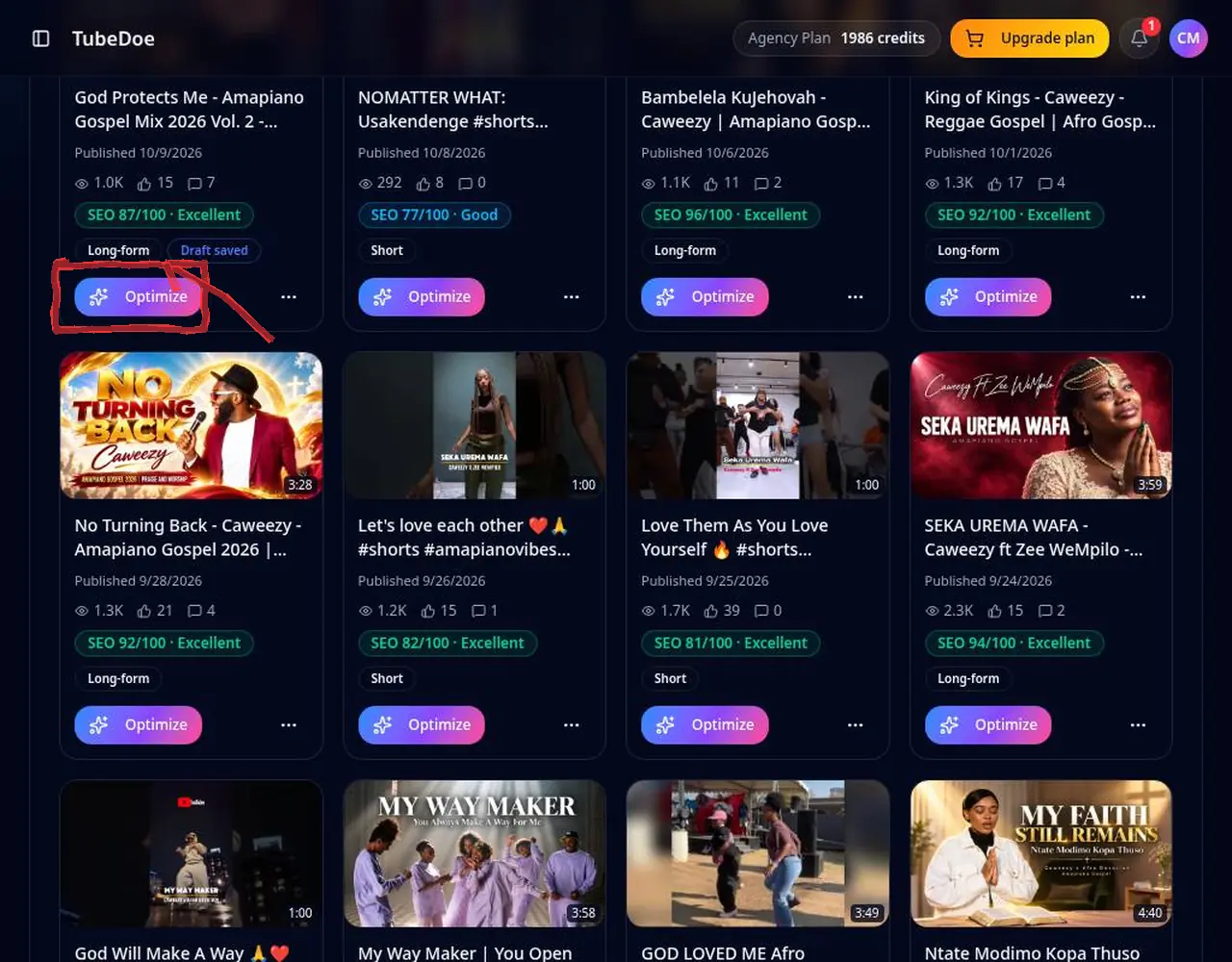 4: Generate improved metadata
Step 4 — Generate improved metadata 5Copy into YouTube Studio
Copy each field and open the video in YouTube Studio to paste and save. TubeDoe is read-only and never publishes.
 5: Copy into YouTube Studio
Step 5 — Copy into YouTube Studio
Pro tips
- Start with videos that already get impressions — small fixes there pay off fastest.
- Use YouTube Keyword Research to pick the main keyword first.
Mistakes to avoid
- Changing a title that's already performing well — check views first.
YouTube Video Optimizer FAQ
Does updating old videos help?
Clearer titles, fuller descriptions and relevant tags help YouTube understand older videos, which can improve search visibility. Results are not guaranteed.
Will TubeDoe publish changes?
No. You copy changes into YouTube Studio yourself.
What does the SEO score check?
Title length and keyword, description depth, tags, hashtags, chapters and more.
How many videos should I optimize at once?
A handful per week is plenty, so you can see what effect each change has.
Can I undo a change?
Your previous metadata is saved as history drafts, so you can copy the old version back into Studio.