How to Use the YouTube Competitor Tracker: Step-by-Step Tutorial
Add rival channels and watch their public stats, breakout videos and thumbnail styles side by side, then audit them against your own channel.
Time: 3 minutes
Cost: Tracking is included; competitor reports use credits
You need: A free TubeDoe account, A competitor's @handle
1Add a competitor
Open the YouTube Competitor Tracker and paste a handle like @MrBeast.
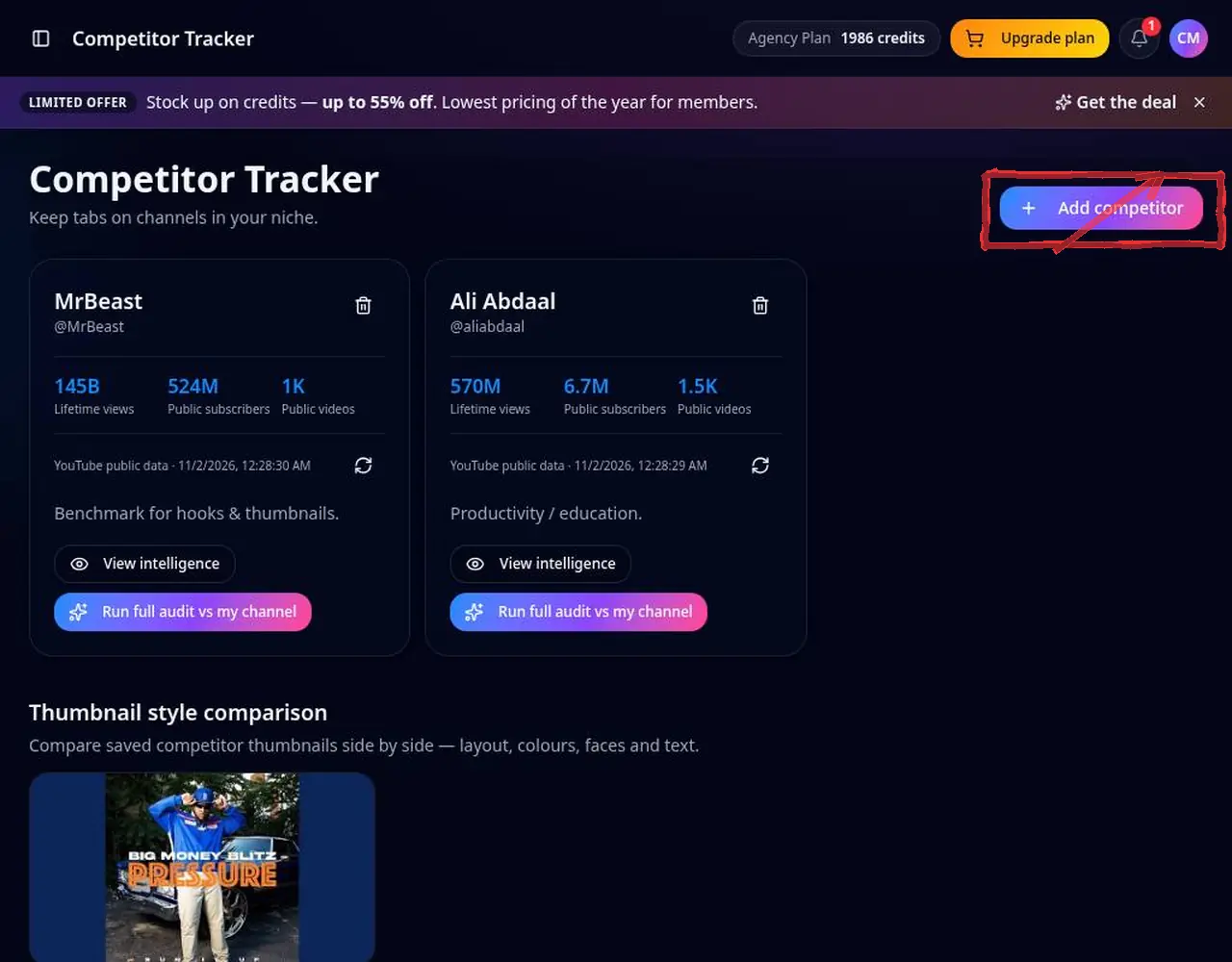 1: Add a competitor
Step 1 — Add a competitor 2Compare benchmarks and thumbnails
See public views, subscribers, upload rhythm and thumbnail styles side by side.
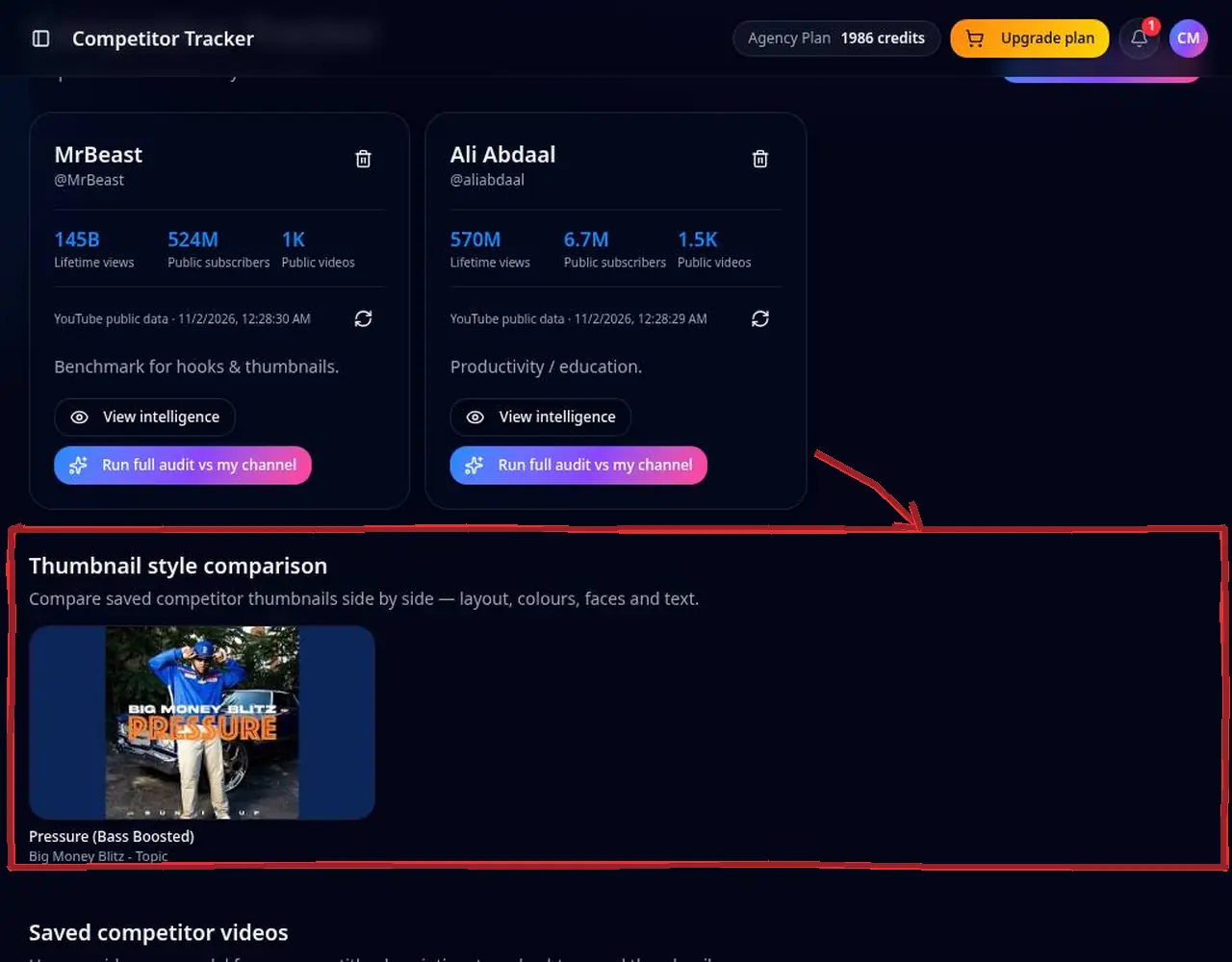 2: Compare benchmarks and thumbnails
Step 2 — Compare benchmarks and thumbnails 3Spot breakout videos
Look for uploads performing far above the channel's average — those topics have proven demand.
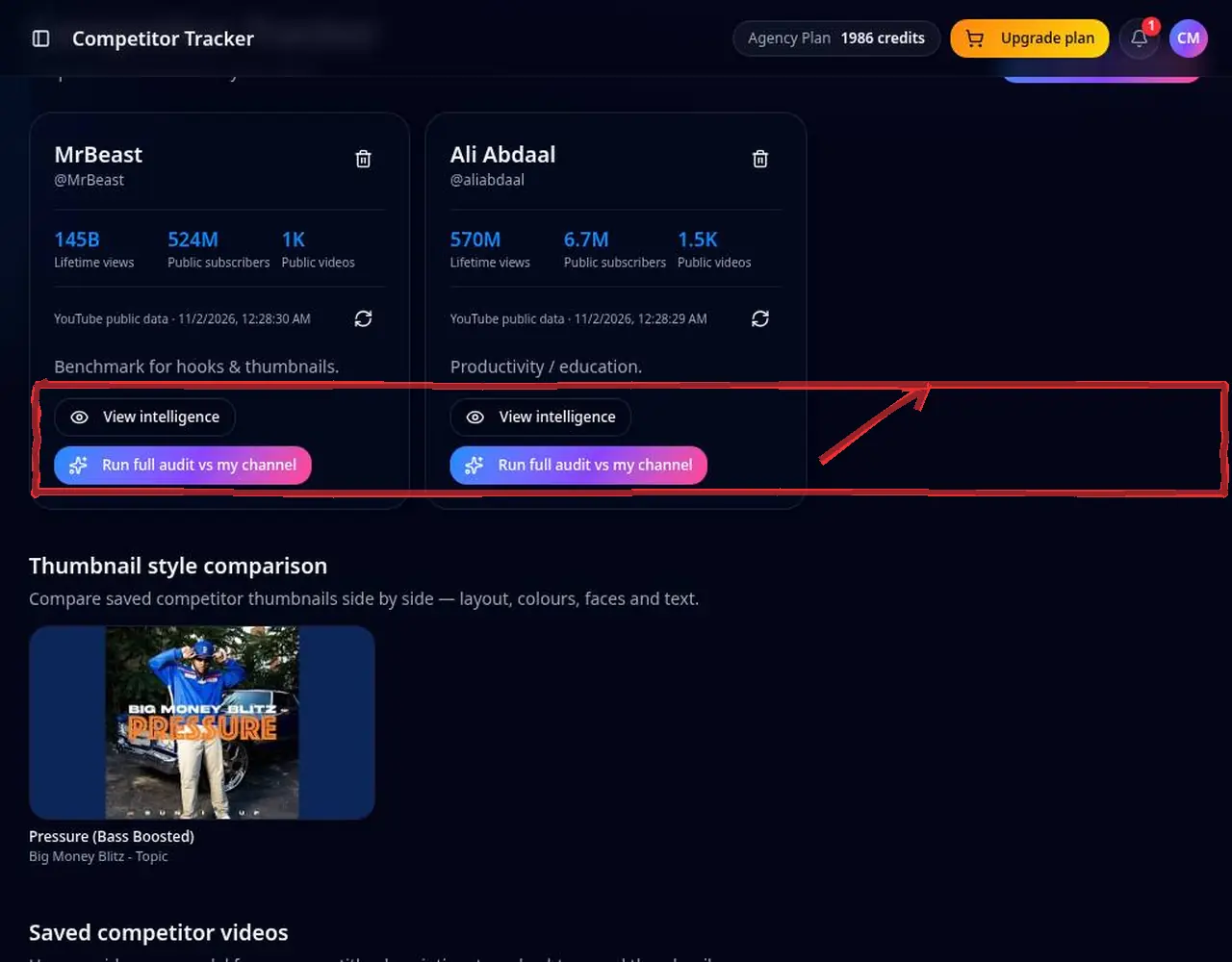 3: Spot breakout videos
Step 3 — Spot breakout videos 4Save models for your next upload
Save videos you want to learn from, then audit the competitor against your channel in Channel Audit.
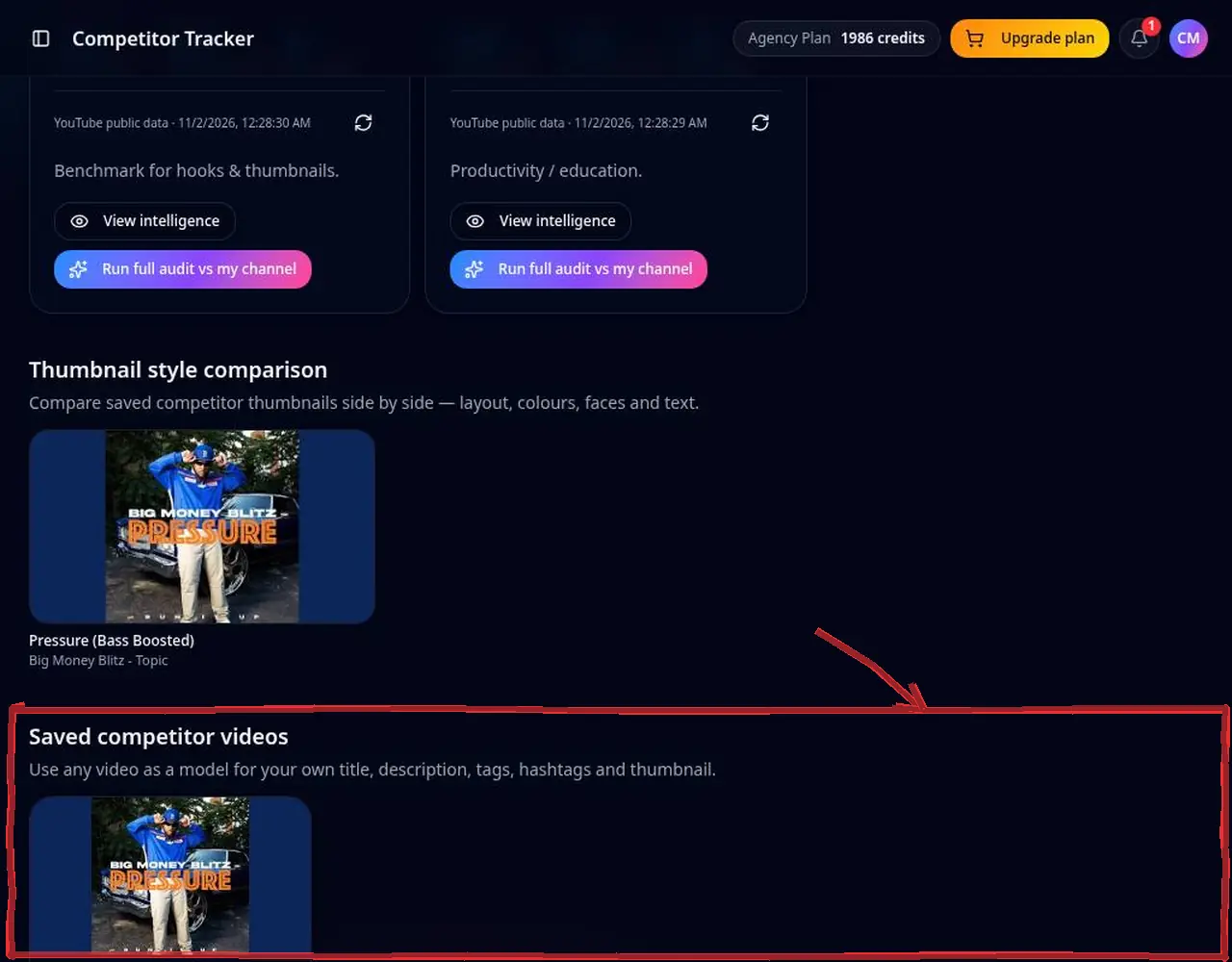 4: Save models for your next upload
Step 4 — Save models for your next upload
Pro tips
- Track channels slightly bigger than yours, not just the giants.
Mistakes to avoid
- Copying content directly — borrow the format and angle, not the video.
YouTube Competitor Tracker FAQ
Can I see a competitor's private analytics?
No. Only public data is shown; private metrics belong to the channel owner.
How many competitors can I track?
Track as many as your plan allows; Agency plans cover unlimited channels.
Is the data live?
Public counters are recorded with dates so you see real changes.
Will the competitor know I'm tracking them?
No. Only public data is read.