How to Use the YouTube Rank Tracker: Step-by-Step Tutorial
Add a keyword and TubeDoe checks the live YouTube top 50 in the countries you choose, showing your best position, which video ranks and how it changes over time.
1Select a target region
Open the YouTube Rank Tracker and choose one of 18 countries where your audience lives.
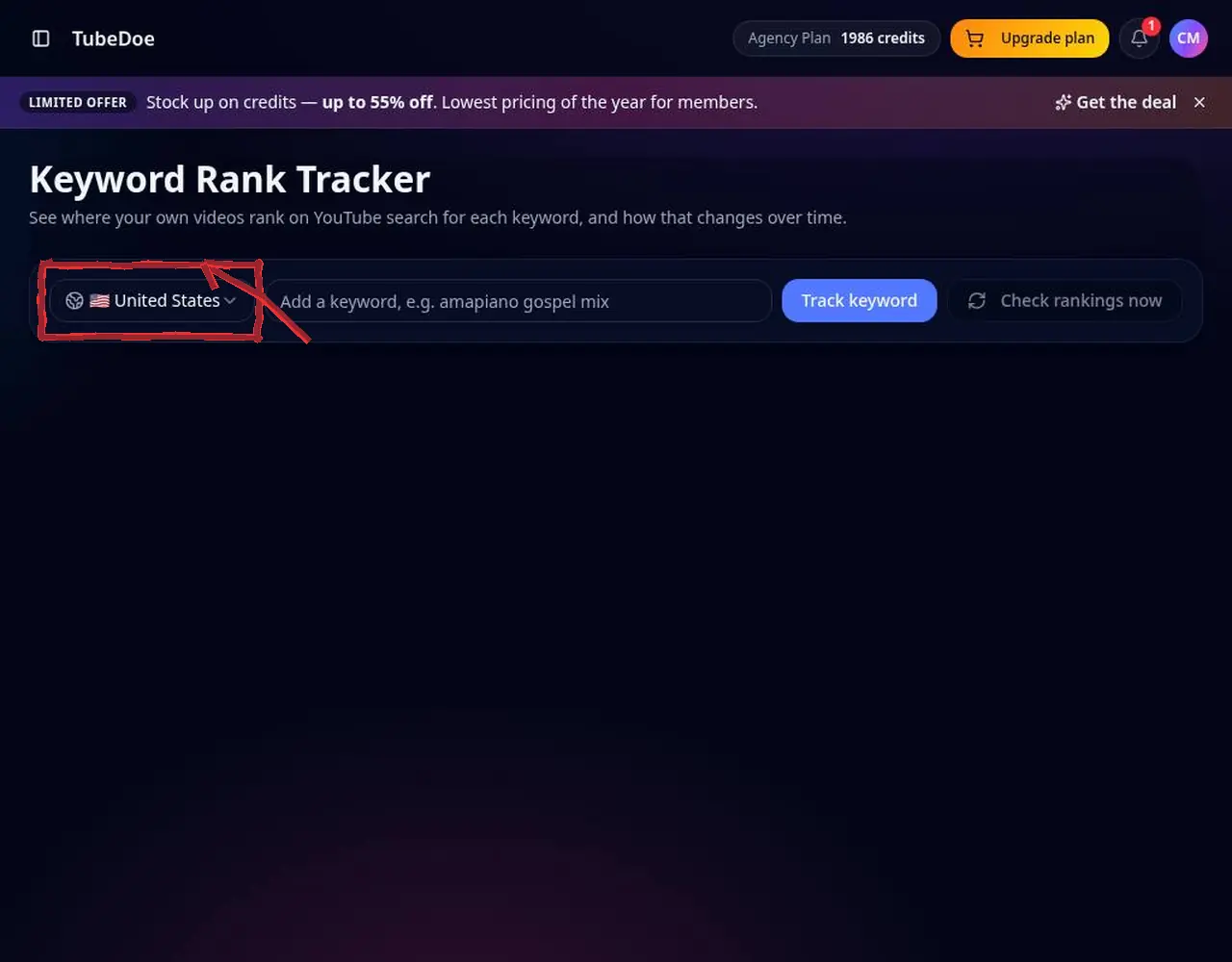 1: Select a target region
Step 1 — Select a target region 2Type a keyword and search
Enter a phrase such as “amapiano gospel”. The keyword is tracked and its stats page opens instantly.
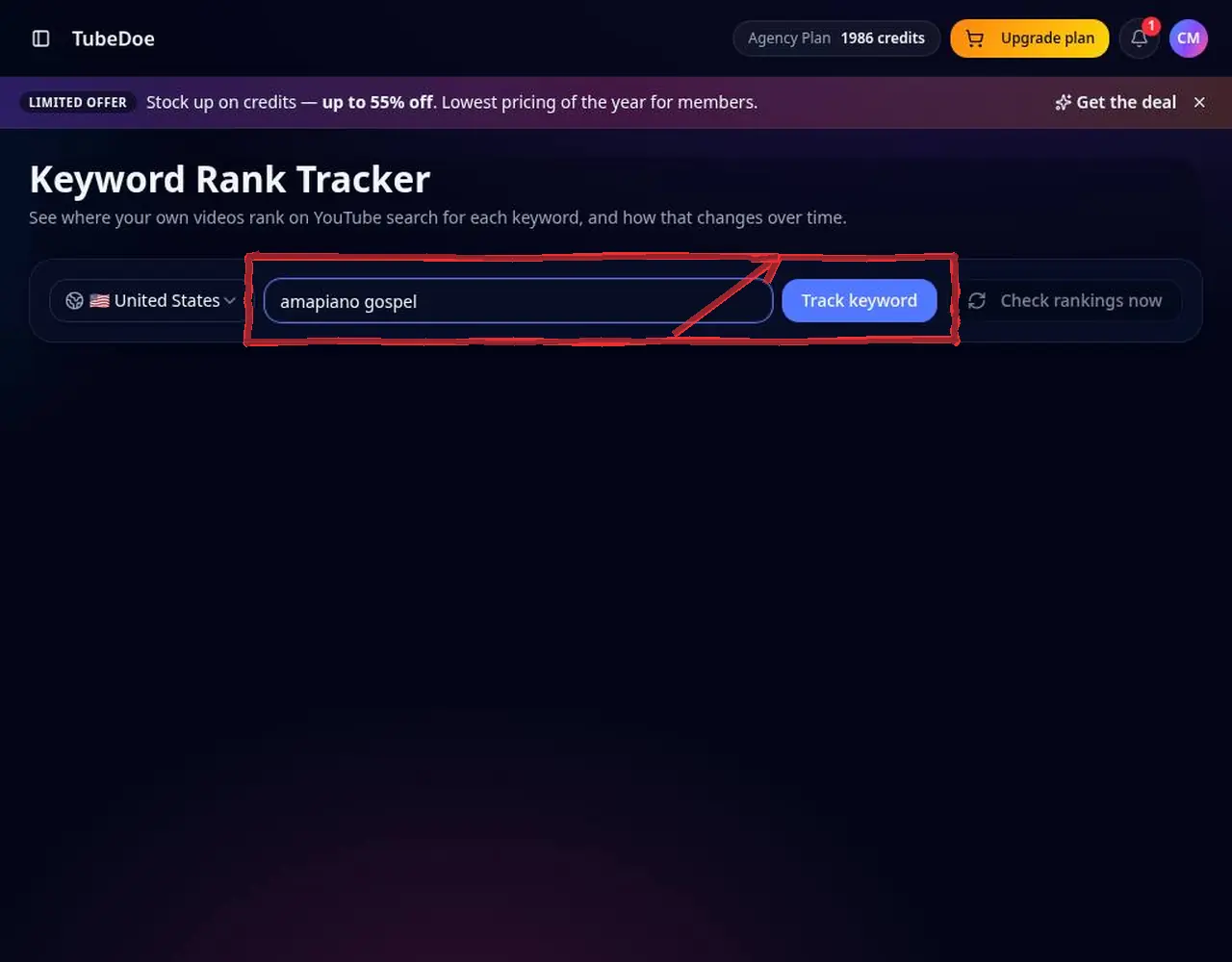 2: Type a keyword and search
Step 2 — Type a keyword and search 3Read your position
We check the live top 50 YouTube results. You'll see your best position and the videos ranking above you.
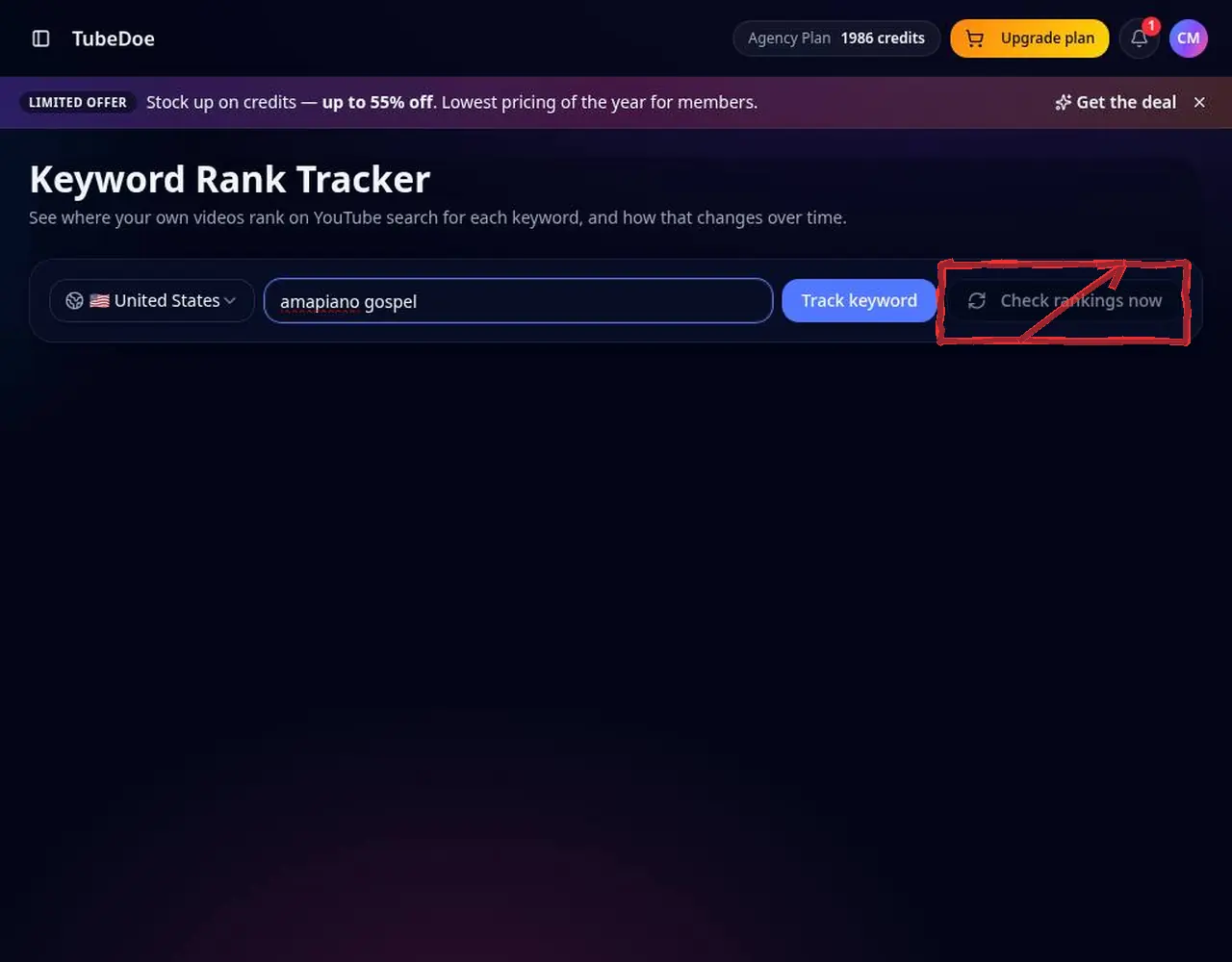 3: Read your position
Step 3 — Read your position 4Compare regions and history
Switch regions and review dated checks to see if you're climbing or slipping.
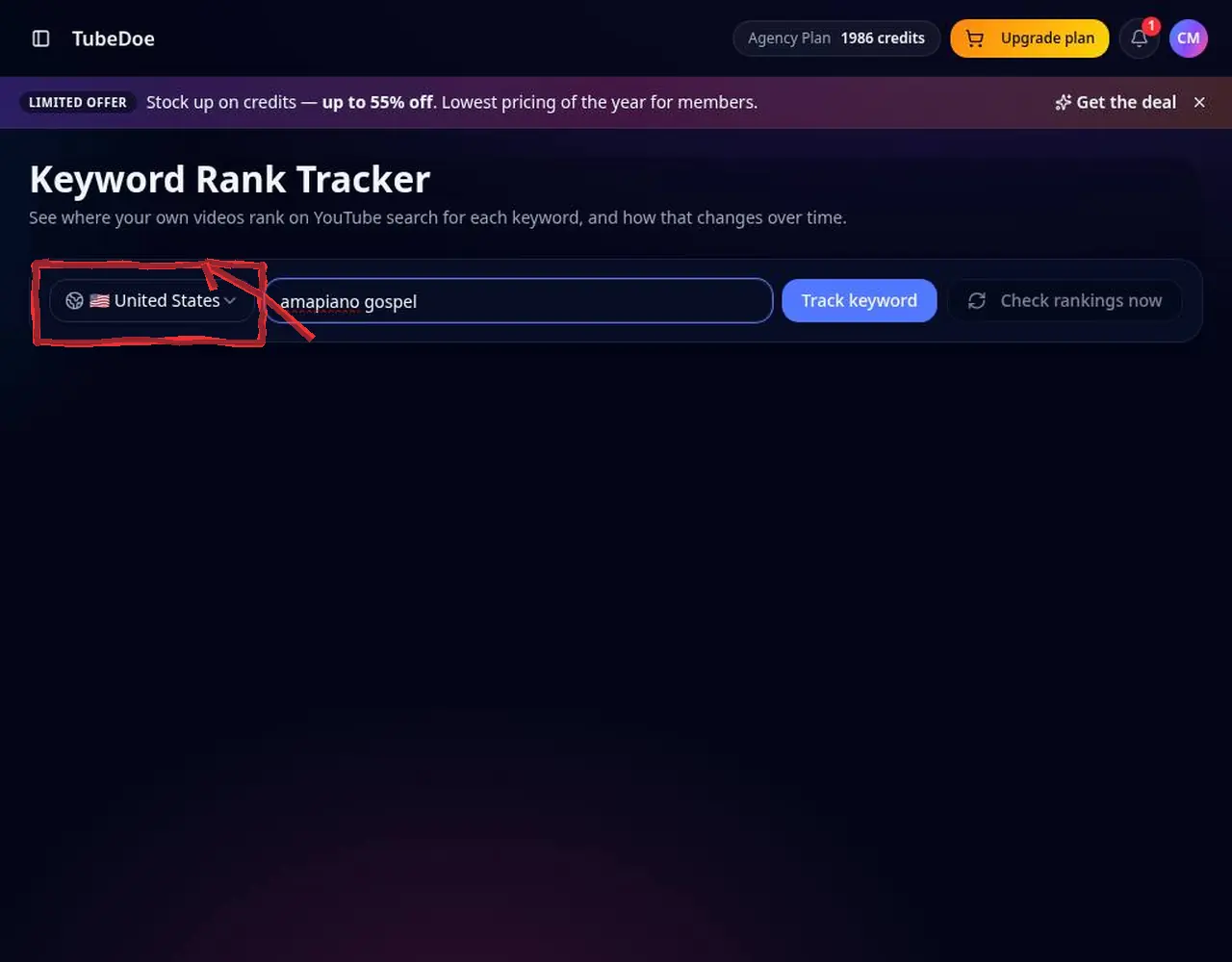 4: Compare regions and history
Step 4 — Compare regions and history
Pro tips
- Track 5–10 keywords per video topic, not hundreds.
- Improve titles with the YouTube Video Optimizer when a rank slips.
Mistakes to avoid
- Expecting per-keyword CTR — YouTube doesn't provide it.
YouTube Rank Tracker FAQ
How deep does it check?
The top 50 YouTube search results for each keyword and country.
Does it show CTR per keyword?
No. YouTube doesn't provide per-keyword CTR; only overall video CTR via Analytics.
Can I track competitors' keywords?
Yes, any keyword can be tracked and you'll see who ranks above you.
What if I'm not in the top 50?
The check shows “not ranked” for that day; keep optimizing and check again later.