YouTube Channel Permissions: How to Give Your Team Safe Access
YouTube expanded channel permissions so you can invite editors and managers without sharing your password. Every role explained, plus a safe setup checklist.
10 min read · November 1, 2026
Key takeaways
- Never share your Google password — invite people by email in Studio.
- Give the lowest role that does the job; use limited roles to hide revenue.
- Review the Permissions list every time a project or contract ends.
What the expansion means
YouTube Studio's "Expansion of channel permissions" update lets channel owners invite people by email and give each one a specific role, instead of handing out the Google Account password. Permissions live in Studio under Settings → Permissions. Full details: Manage channel permissions.
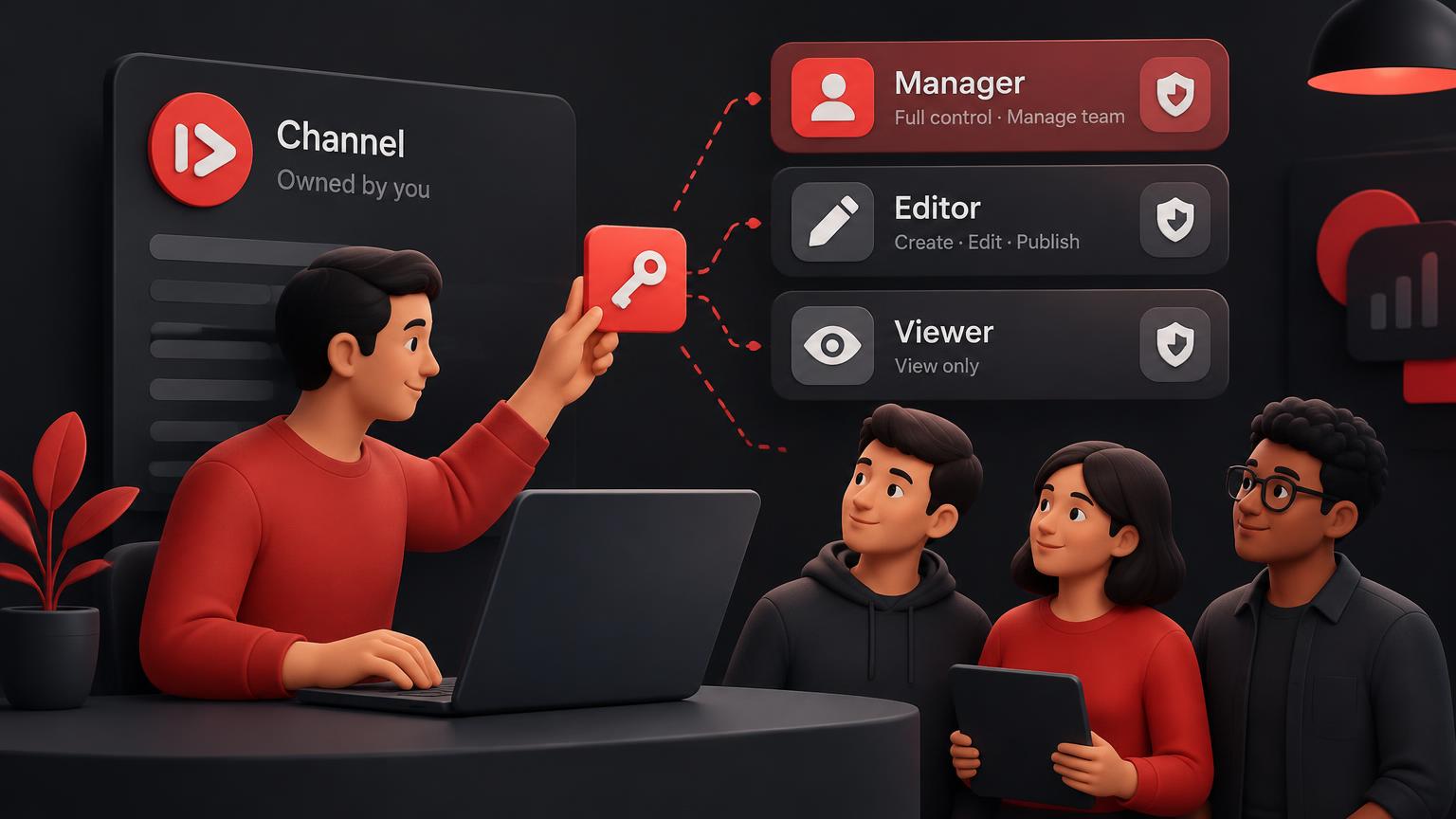
The roles, from most to least access
- Owner — full control, including inviting and removing people and deleting the channel.
- Manager — can invite or remove people and edit everything, but cannot delete the channel.
- Editor — can edit all channel details and content, but not manage permissions.
- Editor (limited) — like Editor, but with no access to revenue data.
- Subtitle editor — can create and edit captions and subtitles only.
- Viewer — can see all channel details, including revenue, but cannot change anything.
- Viewer (limited) — can see channel details except revenue.
Why it matters
Shared passwords are one of the main ways channels get hijacked. With roles, each helper signs in with their own Google Account, you can see who has access, and you can remove someone in one click when a project ends.
Step by step: invite a team member in YouTube Studio
- 1
Open Permissions
In YouTube Studio go to Settings → Permissions. If you see a prompt to move permissions into Studio, accept it first.
- 2
Invite by email
Click Invite, enter the person's Google Account email and pick a role such as Editor or Subtitle editor.
- 3
Let them accept
They accept the email invite and then reach your channel from the account switcher, signed in as themselves.
- 4
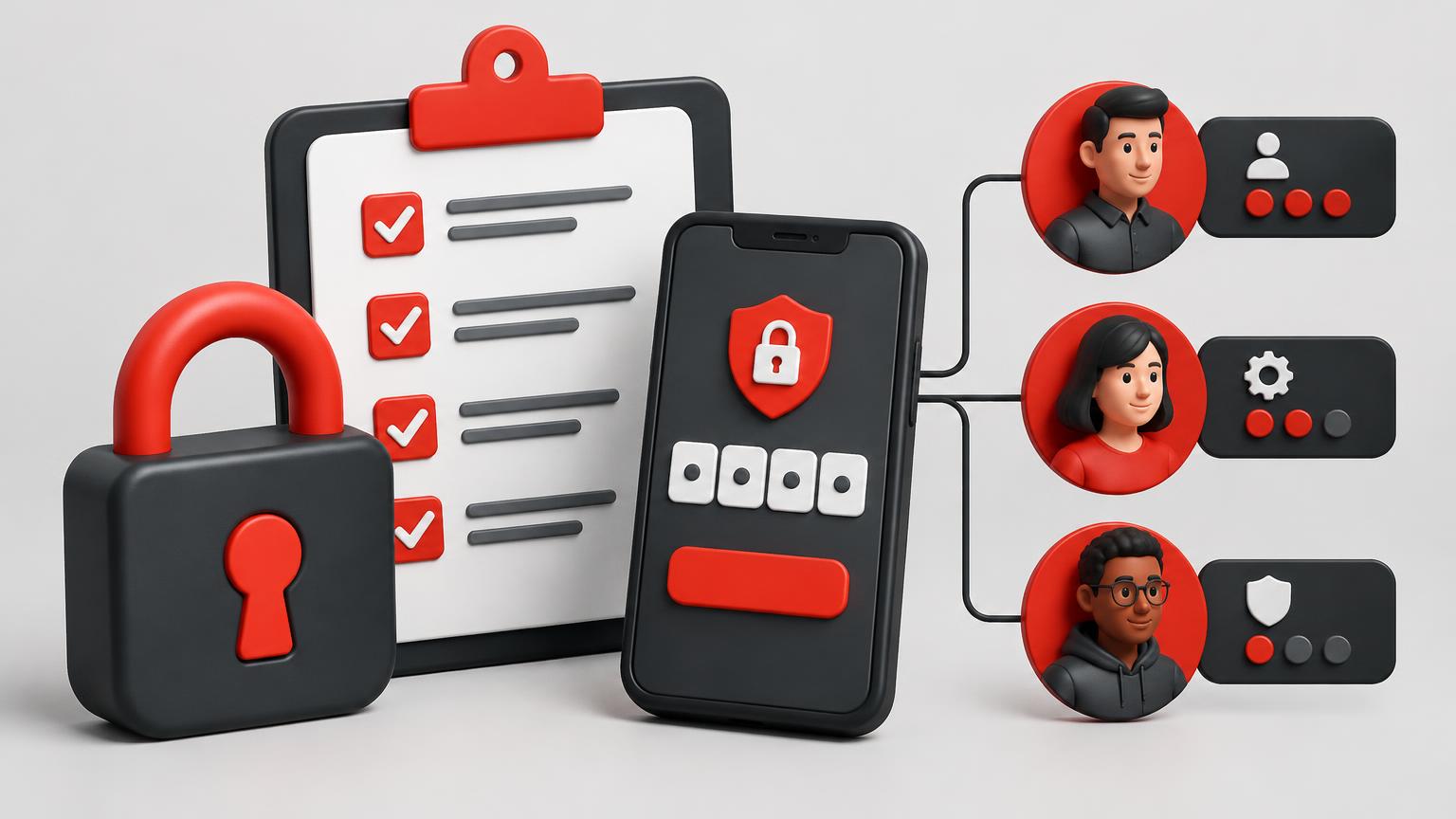
Turn on 2-Step Verification
Ask everyone with Manager or Editor access to protect their own Google Account with 2-Step Verification.
- 5
Remove access when done
Delete the person from the Permissions list as soon as their work ends.
Which role to give whom
- Video editor or uploader → Editor (limited), so they can upload and edit without seeing revenue.
- Caption or translation helper → Subtitle editor.
- Business partner or manager → Manager.
- Agency, sponsor or analyst who only needs numbers → Viewer (limited), or Viewer if they need revenue.
Pro tip: TubeDoe itself never needs a channel role: it connects with read-only YouTube access you approve, and you can check your channel without giving anyone edit rights.
Frequently asked questions
How do I give someone access to my YouTube channel without my password?
In YouTube Studio open Settings → Permissions, click Invite, enter their email and choose a role. They sign in with their own Google Account.
What is the difference between Manager and Editor?
A Manager can also invite and remove people. An Editor can change all channel content and details but cannot manage permissions. Neither can delete the channel — only the Owner can.
Can I hide revenue from an editor?
Yes. Choose Editor (limited) or Viewer (limited); both roles hide revenue data.
Is it safe to connect tools like TubeDoe?
TubeDoe only asks for read-only YouTube and Analytics access, so it can show your stats but cannot change videos or settings. Read more on the YouTube Channel Dashboard.
How do I remove someone's access?
Go to Settings → Permissions in Studio and delete them from the list. Access ends immediately.
Put this into practice with TubeDoe
Tools for ideas, thumbnails, SEO and channel audits. 5 free credits.
Audit my channel